How to run a theory and practical IT exam in a computer lab, with a free sample kit
An IT skills exam usually has two halves. A short theory test checks that candidates know the words and the ideas: what a cell reference is, why a heading style matters, what phishing looks like. A practical test checks that they can actually do the work: build a budget in Excel, format a report in Word. The two halves need opposite settings. The theory test should lock the PC so that nothing else can be opened. The practical test has to let candidates open Excel and Word, while still keeping browsers, chat apps and AI assistants closed.
This guide walks through a complete morning in a computer lab: preparing the exam, setting up the PCs, running the theory test and the practical test, and marking the work. Everything here runs on your own local network with ExamQR Exam, so a weak internet connection does not matter. To try it before you write your own exam, download the sample kit below: it imports in one step and runs as it is.
Download the sample kit
IT skills exam sample kit (ZIP, English) contains a complete exam for ten candidates:
- it-skills-exam.epk: the whole exam, ready to import into ExamQR Exam Server. Two sessions (theory, 20 minutes; practical, 45 minutes), one room, two slots and ten sample candidates.
- theory-test.docx: the 20 theory questions as a Word file, so you can read them, change them or import them on their own.
- starter-files: Budget-A.xlsx, Budget-B.xlsx, Report-A.docx and Report-B.docx, the files candidates open during the practical.
- marking-guide.docx: points for each step of the two practical tasks, and the answer keys.
- candidates.csv and README.txt: sample candidate numbers and passwords, and the short version of this guide.
The kit is free to use and change. The questions cover general computer use, Word and Excel, and work with any recent version of Microsoft Office.
How the exam is built
The sample exam has two sessions, and the split is deliberate.
- Theory: 20 multiple-choice questions, half a point each, 20 minutes. The candidate PC is locked to the exam (kiosk mode). The package has two versions of the test with the questions and options in a different order, and the server alternates them along the seats.
- Practical: two file tasks and three short check questions, 45 minutes, 10 points. Task 1 is a quarterly budget in Excel (formulas, formatting, a chart; 4 points). Task 2 is a service report in Word (heading styles, an automatic table of contents, page numbers, a table; 3 points). After each task, one or two multiple-choice questions ask for a result that only a correct file produces, such as the grand total of the budget (1 point each).
Why two sessions and not one? In ExamQR Exam, a session whose test contains a file task is never locked in kiosk mode, because candidates must be able to switch to Excel and Word. If the theory questions sat in the same test, they would be unlocked too. As separate sessions, the theory runs fully locked, and the practical runs open but with browsers, chat and meeting apps, remote-control tools, AI assistants and screen recorders closed by the app.
The practical comes in two versions, A and B, with different numbers in the budget and a slightly different report. Odd seats get version A and even seats get version B, so the person next to a candidate always has different answers to the check questions.
Step 1: Install the server and the candidate app
One computer in the lab, usually the teacher's, runs ExamQR Exam Server. Every candidate PC runs the ExamQR Exam app. Both are on the ExamQR Exam download page, for Windows and Linux. The server is free for up to 20 computers at a time, which is enough for the sample kit and for most single labs.
The candidate app finds the server on the local network by itself. Two things stop that from working: a firewall on the server PC that blocks the app, and candidate PCs on a different subnet or VLAN. In the second case, candidates type the server address once. Offline exams on a local network explains the network side in more detail.
Step 2: Import the exam
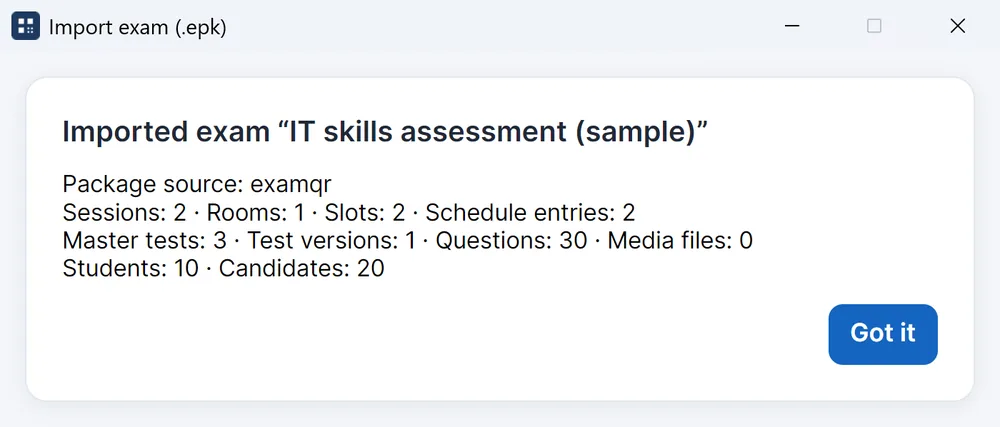
In ExamQR Exam Server, choose Import exam (.epk) and pick it-skills-exam.epk. The server creates a new exam and shows what it imported: two sessions, one room, two slots, three tests (the theory test, plus practical versions A and B), one shuffled version of the theory test, 30 questions and ten candidates.
To build your own exam instead, create an exam with two sessions in the server and add the questions to each:
- Theory. Import a Word file like theory-test.docx: one question per "Question 1:" line, options A to D on their own lines, the letter of the right answer underlined. The Word test format cheat sheet has the rules on one page.
- Practical. Write each task as an essay question and set its display to File upload in the question editor. That is what turns it into a file task with its own work folder. The plain Word format has no marker for a file task, so set it in the editor after importing.
Candidates can also be added by hand or imported from Excel, and the server can spread them over the seats of a room for you.
Step 3: Prepare the lab PCs
The day before, on every candidate PC:
- Copy the starter files. Put the starter-files folder on the desktop and rename it ExamFiles. The tasks tell candidates to open their file from there. The server does not send these files, so they have to be on each PC before the exam.
- Turn on AutoRecover in Office. No exam software can collect work that exists only in Excel's memory. Candidates are told to save in the first minute and to press Ctrl+S often, and AutoRecover is the backup when someone forgets.
- Block USB storage and shared drives, or check desks and bags at the door. The app closes programs; it does not stop a candidate from opening a file on a stick.
- Test with real PCs. Start the server, sign in on two or three lab PCs, start the practical, save a large file in a work folder and check that it reaches the server. Do it in the lab, not on the teacher's laptop at home.
Step 4: Run the theory test
Start the theory session in the server with Start. Candidates sign in on their PC with their candidate number and password (in the sample kit they are in candidates.csv), choose the theory session and start. The screen is locked to the exam until they submit or time runs out.
The supervisor dashboard shows who has signed in, who is working, who has submitted and who has lost the connection, room by room. If a PC fails, the candidate signs in on a spare PC; in kiosk mode the move has to be approved on the server, and the answers saved so far come with them.
The theory test is scored as soon as each candidate submits.
Step 5: Run the practical test
When the theory test is over, start the practical session. Candidates go back to the session list, choose the practical session and start. This time the screen is not locked.
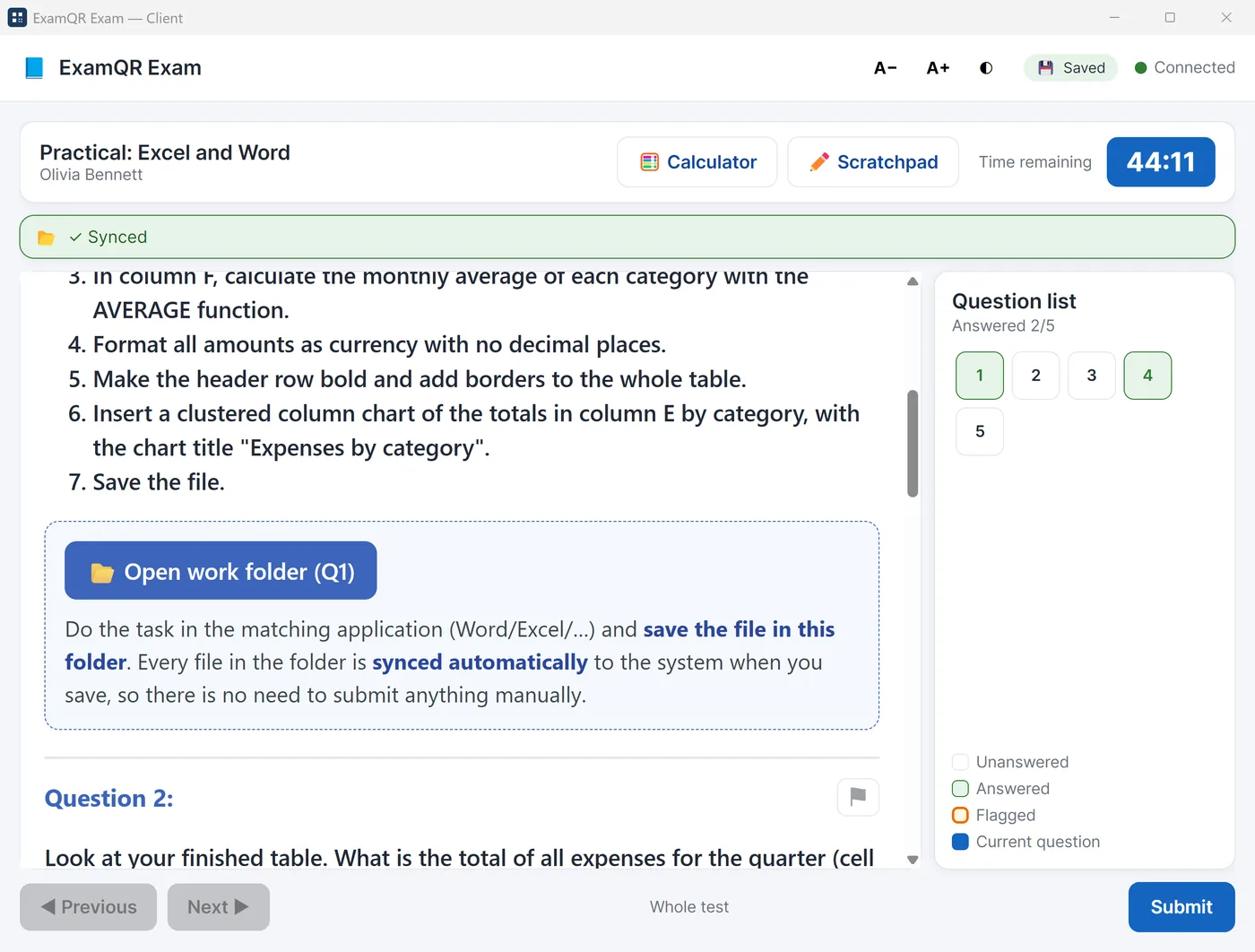
Under each file task there is a button, Open work folder (Q1), Open work folder (Q4) and so on. The number is the task's question number on the candidate's screen. Candidates open Budget-A.xlsx or Budget-B.xlsx from ExamFiles, and save it straight away in the work folder with the name the task gives, Task1-Budget.xlsx. From that moment, every time they save, the app sends the file to the server. It also checks the folders once a minute, and again when a PC comes back after a restart, so a frozen PC loses at most the changes since the last save.
Two habits make the day calmer:
- Read the first instruction aloud: open the file, then save it in the work folder before doing anything else. Most lost work comes from a file left in Documents or Downloads.
- Decide the rule for lost time before the exam. A common one: the invigilator writes down when a PC failed and when the candidate was working again, and that time is added at the end from the dashboard.
The things that still need a person in the room, such as second screens, phones and candidates helping each other, are covered in how candidates cheat in computer exams. For what goes wrong with files during a practical and how to fix it, see five things that go wrong in a practical computer exam.
Step 6: Mark the practical
The check questions are scored automatically, like the theory. The two file tasks are marked by a person, and the marking guide keeps two markers close to each other.
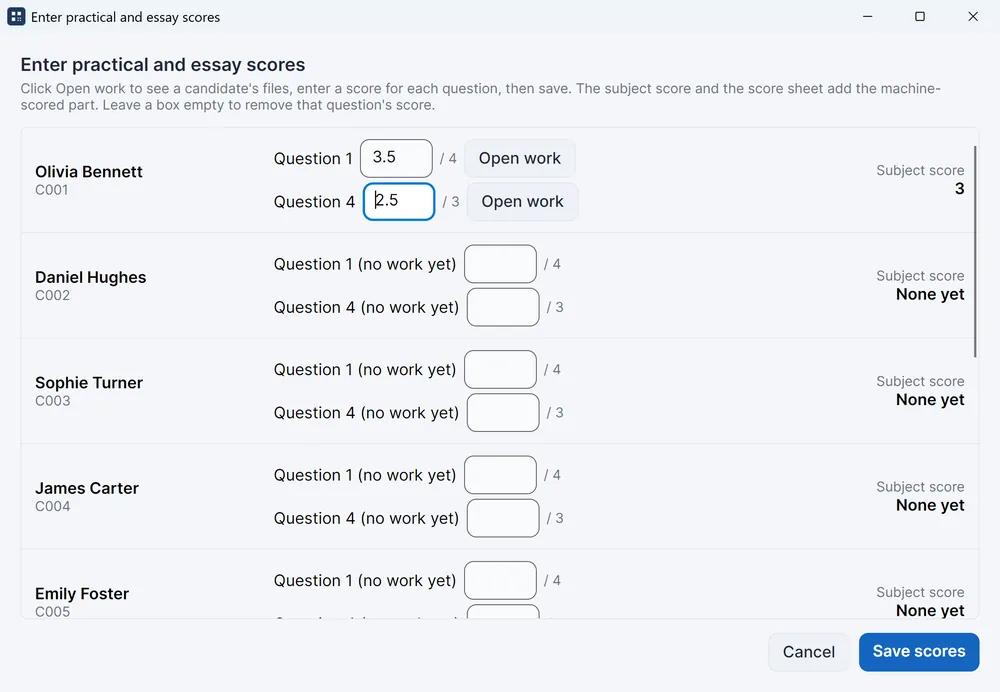
- In the practical session, open Candidates and exam control → Results → Enter practical/essay scores. Each candidate's file tasks are listed with their maximum points, and their work folder opens from the list.
- Score each task step by step with marking-guide.docx. For the budget: totals with a formula, not typed numbers (1 point); correct totals in row 10 (1); averages (0.5); formatting (0.5); the chart with its title (1).
- Type the score. It is added to the candidate's result straight away.
To mark away from the server, use Export practical/essay work. You get one folder per candidate, named with the candidate number and name, and inside it one folder per task (Q1, Q4). Nobody has to collect or rename files.
The check questions are worth reading together with the files. A candidate who chose the right grand total but whose file has typed numbers instead of formulas knew how to get the answer some other way; a candidate whose file is correct but who picked the wrong total probably answered before finishing. Both are worth a second look.
Once everything is scored, the score sheet in the server shows every candidate's theory and practical result. Viewing it is free; printing it or exporting it to Excel needs a licence.
Make the kit your own
- Change the questions. Edit theory-test.docx and import it into the theory session, or edit questions in the server's question editor.
- Change the tasks. Keep the shape: one file task per skill, a numbered list of steps a marker can tick, the file name to save as, and one auto-scored question whose answer only a correct file gives.
- Use your own data. Give each version its own numbers. Different versions with different answers do more against copying than walking up and down the rows.
- Add more candidates. Import your candidate list from Excel and let the server seat them. Keep odd and even seats on different versions.
Questions
Can the theory and the practical be one session? Yes, but then the whole test runs unlocked, because a test with a file task is never locked in kiosk mode. Keep them as two sessions if the theory matters.
Do candidates need an internet connection? No. The server and the candidate PCs talk over the local network only. The internet is needed only to download the apps.
Does ExamQR mark the Excel and Word files by itself? No. A person opens and scores each file. ExamQR collects and names the files, scores the theory and the check questions, and adds everything up.
Can candidates use LibreOffice instead of Microsoft Office? Yes. The app sends whatever is saved in the work folder. Tell candidates which format to save in, for example .xlsx, so markers can open every file.
How many candidates can take the exam at once for free? Up to 20 computers at a time on the free offline server. A licence adds more computers, and printing and export of the score sheet and other reports.
Can I run the same exam online instead? Yes, with ExamQR's online exams: an essay question can ask for files, and you download all the work as one ZIP. On a candidate's own laptop nothing can be closed, so the check questions and the A/B versions matter even more.