How to check a certificate is genuine: a five-minute routine before you hire
A candidate attaches a "Customer Support Specialist" certificate to the application. It looks right: a logo, a signature, a seal, a neat QR code in the corner. But a PDF can be edited in a few minutes, a scanned certificate can be retyped, and certificate templates sell online for the price of a coffee. The document alone proves very little. What proves it is the record kept by whoever issued it.
This guide is a routine any hiring team can follow, whatever the issuer. It then shows what the check looks like for a certificate issued with ExamQR, and what to do if your own organisation issues certificates.
What a certificate can and cannot tell you
A certificate is a claim: "this organisation says this person passed this assessment on this date". You can only confirm the claim with the organisation, either through a verification page it runs or names, or by asking it directly. Fonts, seals and paper quality help you decide how carefully to check, never whether the certificate is genuine.
Warning signs worth a closer look
None of these proves a fake on its own; each is a reason to verify before you rely on the document.
- The issuer is hard to find on your own. No website you can locate independently, or only a free email address as contact.
- Details that do not match the CV. A different spelling of the name, dates that do not fit the career history, a course that seems too short for the title.
- No register number or verification code, although the same issuer prints them on other certificates.
- Signs of editing. One line in a different font or size, a sharp name next to a blurry logo, text slightly off its line.
- A QR code or link that goes somewhere unrelated to the issuer. More on this below, because it is the easiest trick to miss.
The routine, in five steps
1. Find the verification route on the certificate
Look for a QR code, a printed verification address with a code, or a register number. If there is none, go to step 5.
2. Check where the QR code leads before you trust it
A QR code is just a link, and a fake certificate can carry a link to a convincing fake page. When your phone camera shows the address, read it before you open it. It should be the issuer's own website, or a verification service that the issuer names on its own website. If you are unsure, do not use the code: find the issuer's website yourself, open its verification page from there and type the code.
3. Compare every detail
Put the verification page next to the document: name, certificate title, dates, register number, grade or score if they appear on both. Any difference means the document in front of you has been changed, even if the certificate behind it is real.
4. Read the status
A good verification page says more than "found". Valid means the issuer stands by it today. Expired means it was genuine but has passed its end date; whether that matters depends on the role. Revoked means the issuer withdrew it, for example after a result was corrected, and it should not be relied on.
5. No online verification? Ask the issuer
Contact the organisation using details you find yourself, not the phone number or email printed on the certificate. Many issuers only confirm a certificate with the holder's permission, so ask candidates to agree to credential checks in your application form. Note in the candidate's file what you checked, when, and the answer.
What the check looks like for an ExamQR certificate
Organisations that issue certificates with QR verification on ExamQR print a QR code and a 12-character code under it on each certificate.
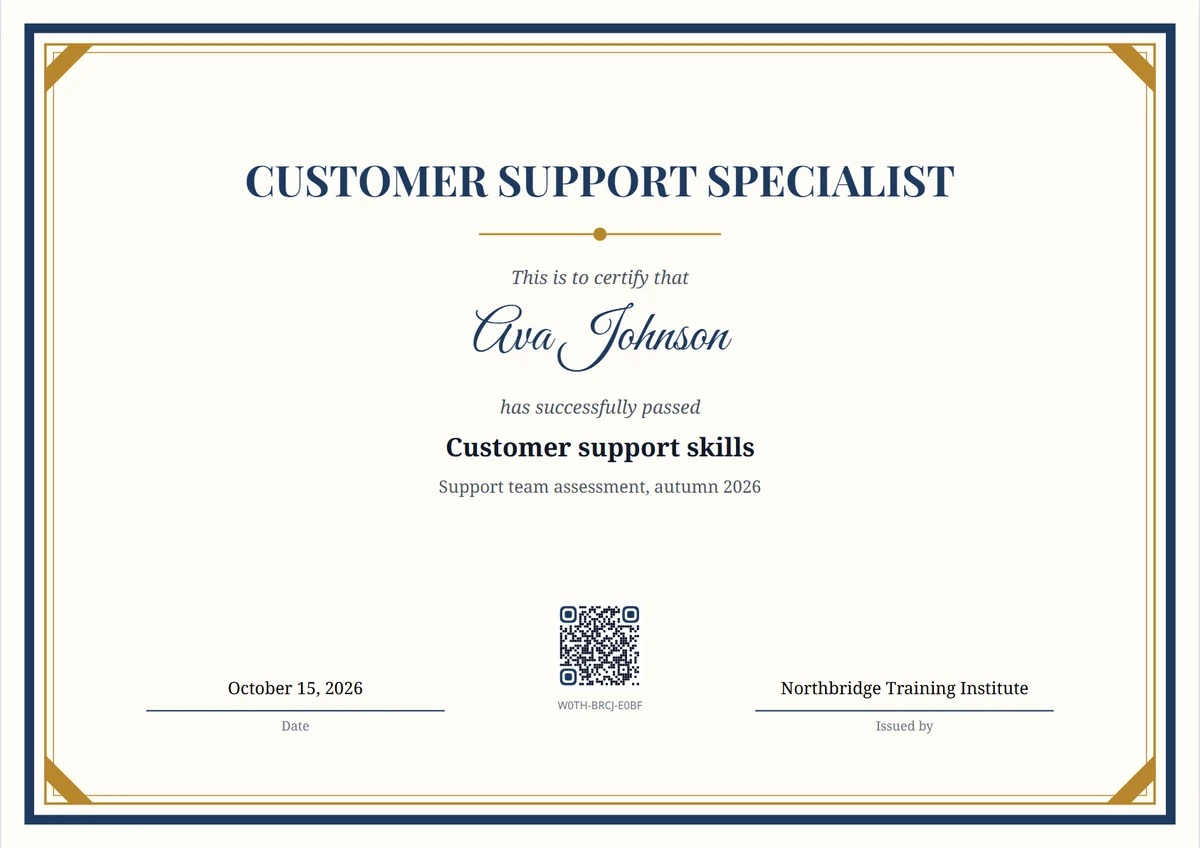
- The address is always app.examqr.com/verify/ followed by the code, for example
app.examqr.com/verify/7K3M-Q9TX-2HPV. ExamQR does not verify certificates on any other address. A certificate that sends you elsewhere "to verify with ExamQR" is not genuine. - No camera at hand? Open
app.examqr.com/verifyand type the code printed under the QR code. - The page shows the record, not the paper: who it was awarded to, the certificate, the subject and exam, the issuing organisation, the issue date, and the expiry date, register number and grade when the certificate has them. The score appears only if the certificate itself prints it.
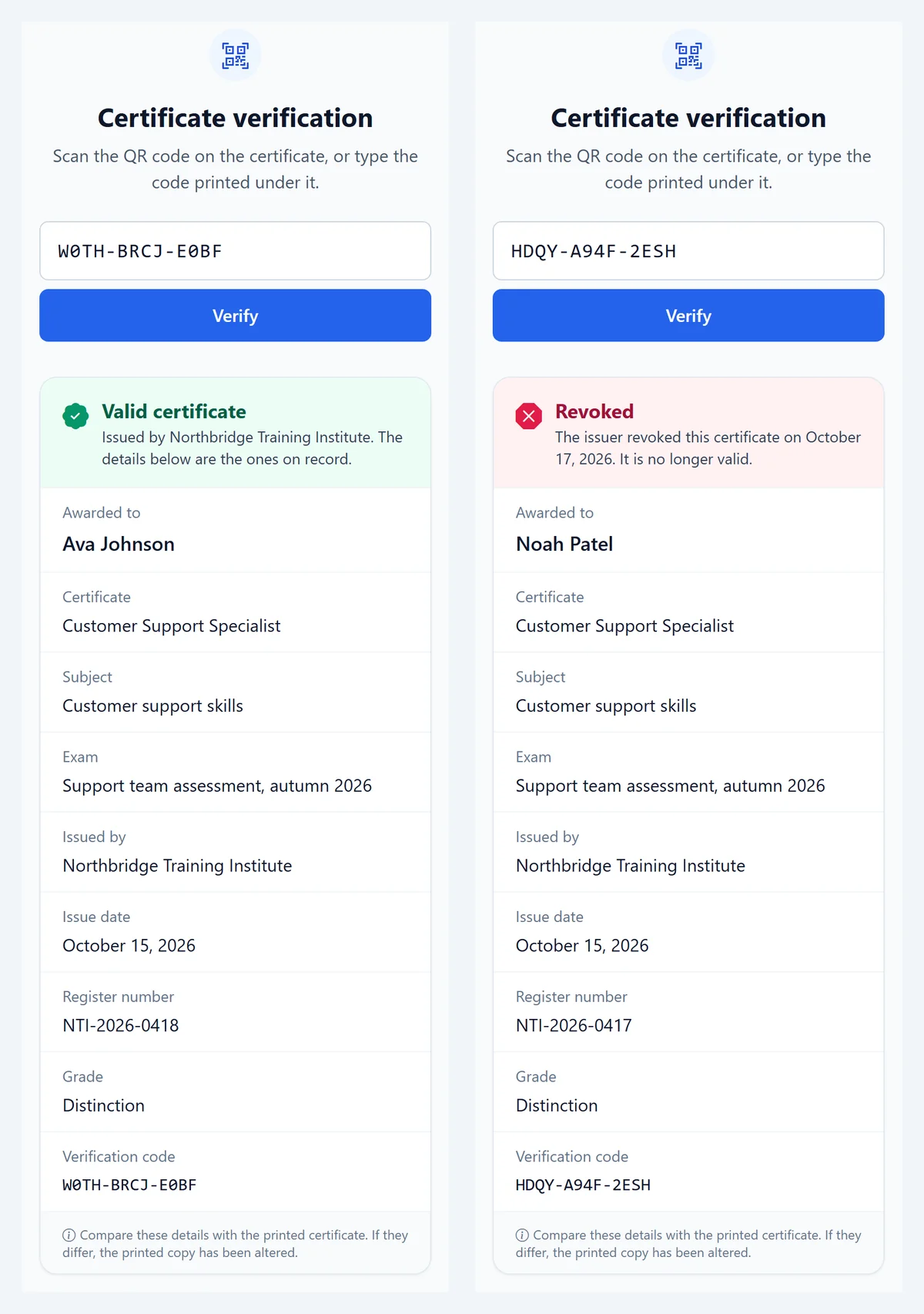
What the other answers mean:
- Revoked: the issuer withdrew the certificate on the date shown. ExamQR revokes a certificate on its own when a remark brings the score below the pass mark, and when the issuer reissues it to correct a detail; the corrected certificate has a new code.
- Expired: the certificate was genuine but its end date has passed.
- No certificate found: the code is mistyped (it has 12 letters and digits) or does not exist. The page gives the same answer in both cases, so it reveals nothing about which codes are in use.
- No online verification: the certificate was printed without it. Ask the issuer, as in step 5.
The page opens only with a code, cannot be searched by name, is not indexed by search engines, and limits how often it can be queried, so nobody can look up a person's certificates without holding one.
If your organisation issues certificates
Make the check easy for the people who will rely on your certificates:
- Print a verification route on every certificate: an address on your own domain or on a service you name on your website, plus a code.
- Keep a register with numbers you can look up, and say on your website how employers can verify.
- Withdraw certificates when a result changes, and show it on the verification page rather than only in your files.
In ExamQR, certificates issued from an exam carry QR verification on paid plans; see how to issue certificates with QR verification. If you already have your own verification pages, the free certificate maker prints a QR code of your own links on each certificate.
Checklist
- Verification route found: QR code, address and code, or register number.
- QR destination read: the issuer's own website, or a service the issuer names.
- Details match: name, title, dates, register number, grade.
- Status read: valid, or expired and still acceptable for this role.
- Result recorded: what was checked, when, and the answer.
Questions
Can I look up an ExamQR certificate by the holder's name? No. Only the code opens a certificate, so that nobody can browse people's records.
The page says "Expired". Is the certificate fake? No. It was genuine, but the issuer gave it an end date that has passed.
The candidate only has a printout without a QR code. Ask the issuer directly. Certificates printed without online verification cannot be checked on the page.
Does ExamQR vouch for the course or the skill? No. The organisation named on the certificate issued it and is responsible for what it certifies. ExamQR stores the record and shows it to whoever holds the code.
Hiring with assessments of your own? See how ExamQR supports recruitment, from registration to the shortlist.