How to import a Word test into Moodle without retyping it
You have a 40-question test in Word, with a few diagrams and some formulas, and the course runs on Moodle. Moodle's question bank does not read a .docx file. Typing each question into the question editor, ticking the right answer and uploading each picture takes an afternoon, and every typo becomes a wrong answer key.
This guide compares the ways to get questions into Moodle, shows how to prepare the Word file, and walks through converting it to Moodle XML with the free ExamQR converter and importing it.
The ways to get questions into Moodle
Moodle imports questions from files. Which format you use decides how much survives the trip.
| Format | Question types | Images and formulas | What it takes |
|---|---|---|---|
| Retype in the editor | All | Added by hand | Hours per test, typing errors |
| Aiken (plain text) | Single-answer multiple choice only | No | Rewrite the test in a strict text layout |
| GIFT (plain text) | Most types | Formulas and images need extra work | Learn the syntax; characters such as ~ = # { } must be escaped |
| Word import plugin | Most types | Yes | A site administrator installs the plugin; the test must follow its own Word template |
| Moodle XML | Every core question type | Yes, inside the file | Generated by a tool, not written by hand |
Moodle XML is the format Moodle itself uses to export questions, so it carries the most. Nobody writes it by hand; you need something that turns your Word test into it.
1. Prepare the Word file
The converter reads a test written the way most teachers and trainers already write one. These rules cover most files:
- Start each question with Question 1: (or Question 1.), with a space before the number.
- Start each answer choice with A. B. C. D., a capital letter followed by a full stop.
- Mark the correct answer by underlining its letter, or making it red.
- Set pictures to In Line with Text, so they stay attached to their question.
- Save the file as .docx.
The Word format guide covers the rest: tests in several parts, passages shared by several questions, true/false statements, short answers, matching and word ordering. A test that is a scan, a PDF or a free layout can be converted with AI instead, which needs an account and credits and is refunded in full if it fails.
2. Convert it to Moodle XML
- Open the free quiz converter. No account is needed for Word files.
- Click Upload Word/PDF and choose the file.
- When the test is converted, click Moodle XML (.xml) and save the file.
- Read the message under the buttons. It counts the questions and lists anything that does not carry over exactly.
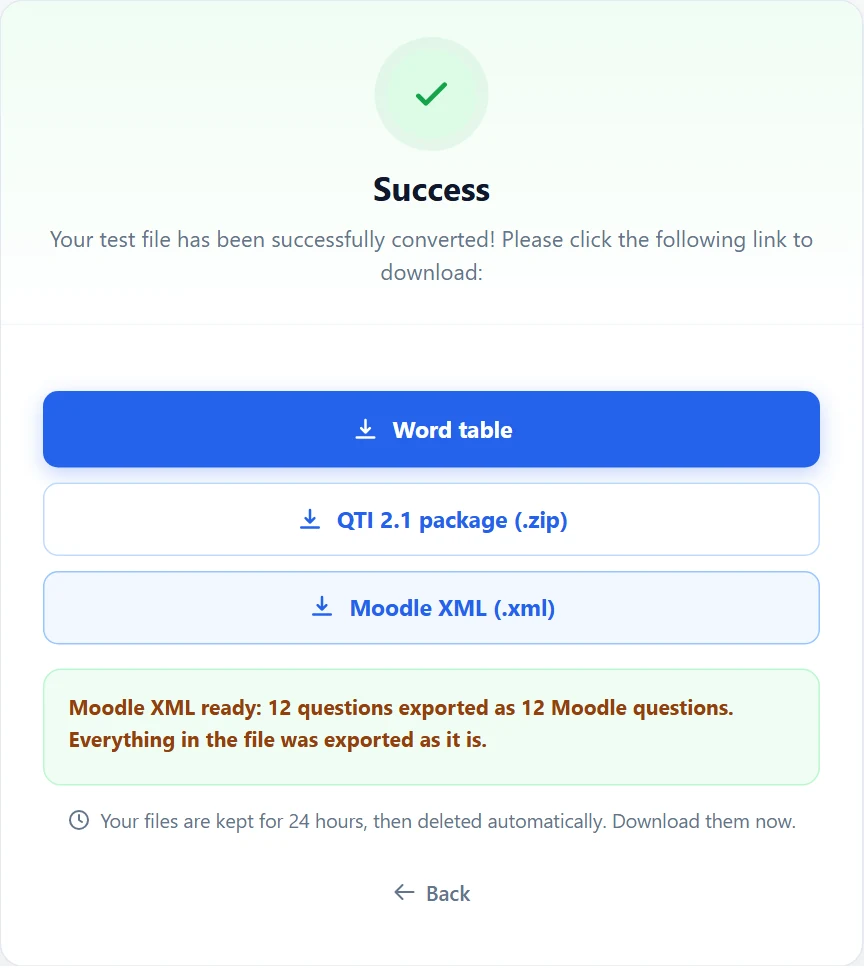
Inside the file, each test and each of its parts becomes a question category, pictures are embedded, and formulas are written as TeX, which Moodle displays with its MathJax filter. Files are kept on the converter for 24 hours and then deleted, so download them straight away.
3. Import it into Moodle
- Open the course and go to its question bank (in the course's More menu: Question bank, or Question banks in recent versions).
- Choose Import.
- Select the file format Moodle XML format.
- Drop the .xml file into the file box and click Import.
- Moodle lists the questions it read. Click Continue; they are in a category named after your test.
Then add the questions to a quiz from that category, as you would with questions written in Moodle.
What Moodle does differently
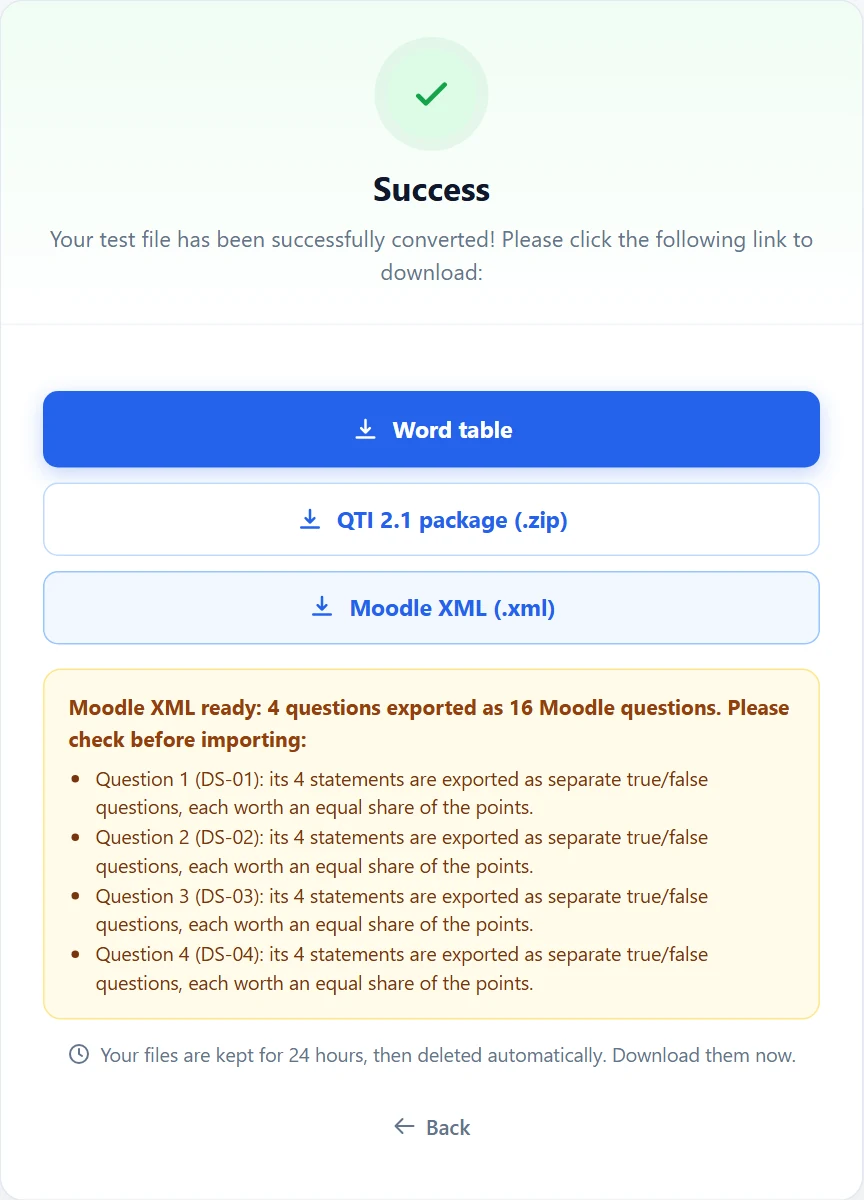
Moodle has no exact equivalent for a few question features. The converter tells you, question by question, before you import:
- Multiple-response questions keep every correct answer, but Moodle gives partial credit when only some of them are ticked. A wrong tick still scores zero.
- Groups of true/false statements become one true/false question per statement, each worth an equal share of the points.
- Word ordering becomes a matching question (position to item), because Moodle has no ordering question in its core.
- A passage shared by several questions becomes a description item placed before them. Keep it on the same quiz page as its questions.
- A short answer accepted as a range of numbers cannot be scored automatically; the range is shown in the feedback for whoever marks it.
- Matching answers are plain text in Moodle, so a picture or formula inside one is reduced to its text.
Check before the quiz goes live
- Preview three or four questions in Moodle, including one with a formula and one with a picture.
- Check that the right answers are marked and that each question is worth what you expect.
- If formulas show as code such as
\(x^2\), ask your Moodle administrator to turn on the MathJax filter. - Decide whether answer choices are shuffled; the converter turns shuffling on, except where your test pinned a choice in place.
Common mistakes
- No correct answer marked. The question cannot be scored; the converter lists it so you can fix the Word file.
- Floating pictures. Pictures wrapped around text can lose their place. Set them to In Line with Text before converting.
- Choices written as a), b), c). Use A. B. C. D., or set the answer style on the converter page to match your file.
- Importing into the wrong course. Questions land in the course you import into. Open the right one first.
Questions
Is the converter free? Yes, for Word files, without signing up. Converting PDFs, scans and free layouts with AI needs an account and credits.
Is my test sent to an AI service? Only if you tick Convert with AI. A Word file in the format above is converted without AI.
Can I use the same file in Canvas or another LMS? The converter also makes a QTI 2.1 package for systems that import QTI 2.1. Canvas Classic Quizzes expects QTI 1.2, so it does not read that package.
Can I shuffle the test into several versions first? Yes. Download the Word table from the same page and open it in the test shuffler; read more in how to shuffle a test fairly.
Would rather run the exam outside Moodle, with live supervision and instant scores? See online exams on ExamQR.