Shorter queues at the exam door: a sign-in QR code on every entry card
Twenty minutes before the start, sixty candidates are at the door. Each one has to type the exam code, a username and a password on a phone, with nervous fingers: a zero becomes the letter O, a password is mistyped twice, someone has left the slip at home. The invigilators spend the first quarter of an hour on sign-ins instead of the room.
This guide covers what makes exam sign-in quick and safe, whatever system you use, and then shows how ExamQR prints a personal sign-in QR code on each entry card.
What makes sign-in quick and safe
- Personal credentials, one candidate per card. Shared or reused passwords make it impossible to know who sat which paper.
- Nothing ambiguous to type. Passwords that mix O and 0, l and 1, are where typing errors come from. Short numeric passwords are easier on a phone keyboard.
- A shortcut and a fallback. A QR code is fastest on a phone or tablet. On a lab computer without a camera, the candidate types the same details printed next to it.
- The password never goes into the QR code. The code should hold a random link that can be switched off, not the credentials themselves.
- A lost card can be replaced on the spot. Issuing a new card must make the old one useless, for that candidate only.
- Cards are handed out against an ID. Whoever holds a card can sign in, just as with a password written on paper.
How it works in ExamQR
1. Create the passwords and print the cards
When you import candidates into a subject, ExamQR creates a random six-digit password for each new candidate whose file has none, and shows it once. Click Print entry cards in that window, or Download (Excel) to keep a copy. Passwords are stored in a form that cannot be read back, so this is the moment to print.
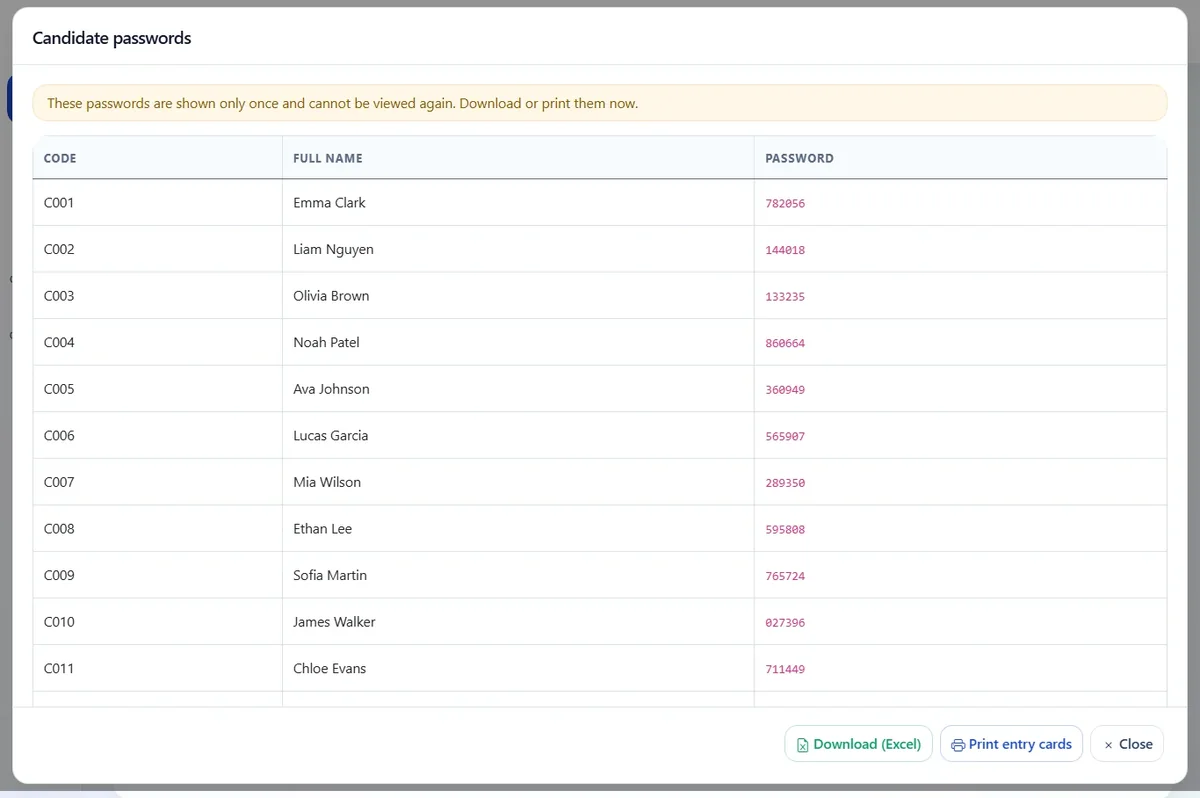
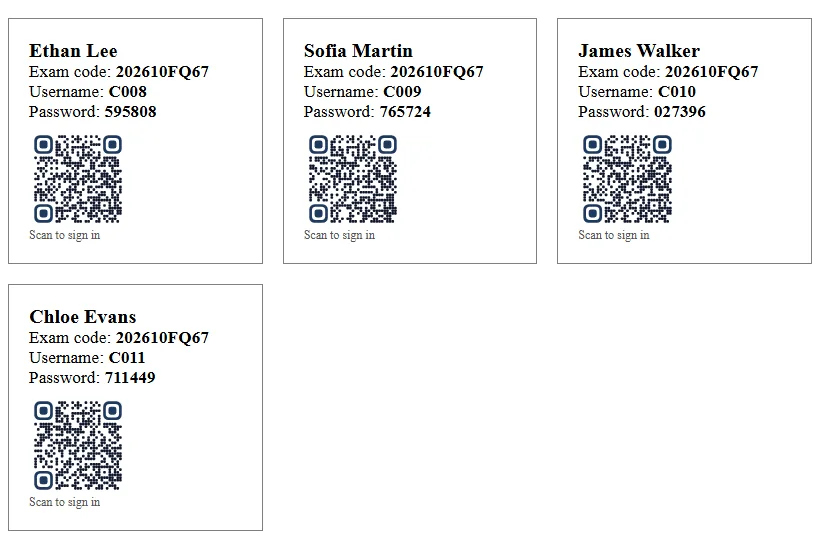
Each card carries the candidate's name, the exam code, the username and the password, and a personal QR code with the words "Scan to sign in". The QR code is available on every plan, including Free.
2. On the day, candidates scan their card
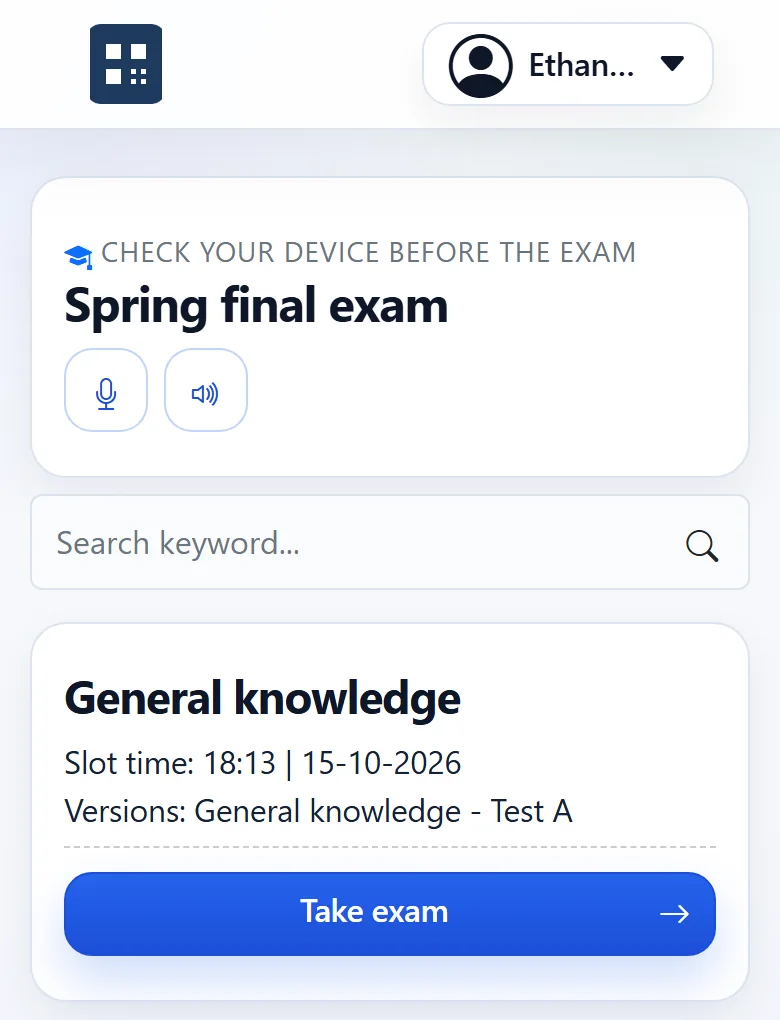
The candidate points the phone camera at the card and opens the link. They are signed in and land on the exam page, ready to press Take exam. Nothing to type, nothing to mistype.
On a computer without a camera, the candidate opens the exam's sign-in page and types the exam code, username and password from the same card.
3. A lost card? Issue a new one
Tick the candidate in the subject's candidate list, choose Reset passwords and print a new card for them. The new card has a new password and a new QR code, and the old card stops working. Other candidates' cards are not affected.
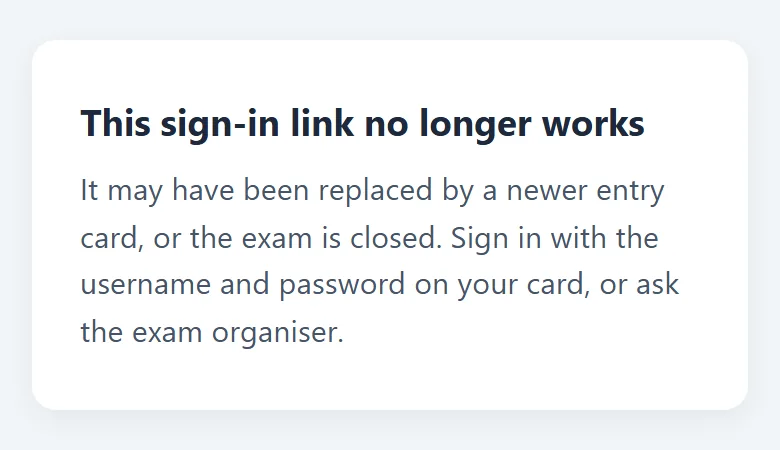
Printing cards again for everyone does the same for everyone: only the newest cards work. If someone scans an old card, they see why and what to do.
4. What the QR code is, and is not
- It holds a random personal link, not the password. ExamQR stores only a fingerprint of that link, never the link itself.
- It only signs in while the exam is active. Once the exam is closed, the link is refused.
- It belongs to one exam. A card from a previous exam does not open the next one.
Candidates who registered in advance get the same kind of personal QR code in their confirmation email; see how to run sign-ups for an assessment day.
Common mistakes
- Printing the cards too early and posting them. Cards travel, get photographed and shared. Hand them out at the door against an ID, or send each candidate their own link by email.
- Reprinting everything for one lost card. Everyone else's card then stops working. Reset only the candidate who needs a new card.
- No plan for computers. On lab computers, a QR code alone is not enough: keep the exam code, username and password on the card, as ExamQR does.
- Laminating cards to reuse them. Links and passwords belong to one exam. Print fresh cards for each one.
Questions
Do candidates need an app to scan? No. The camera app on current iPhone and Android phones opens QR codes directly.
Is it safe to put a QR code on the card? It is as safe as printing the password on the same card, which entry cards already do: whoever holds the card can sign in. The difference is that a QR link can be switched off by printing a new card.
Can I use my own card design? Yes. If you design your own entry cards, add the sign-in QR field to the layout.
Which plan do I need? Any plan, including Free. See pricing for what else each plan includes.
Before the day, seat everyone with the exam seating plan guide, and see how ExamQR runs online exams.