How to create multiple versions of a multiple-choice test in Word
You have a 30-question multiple-choice test in Word and a room where candidates sit close together. You want four versions with the questions and the answer choices in a different order, each with its own code, and an answer key for each. Word has no command for this, so most people end up cutting and pasting. This guide shows how to get the versions without doing it by hand.
Why doing it by hand goes wrong
Making versions in Word by hand means, for every version: copy the file, move the questions, renumber them, reorder the A B C D options of each question, and write down where the correct answer went. Four versions of a 30-question test means 120 questions to move and 120 answer-key entries to write.
The moving is slow, but the answer key is where it hurts. One letter copied wrong and every candidate with that version loses a mark they earned, and nobody notices until someone complains. A tool that reads the correct answer from the file and builds the key itself removes that risk.
How many versions you need
- Two versions, alternated along each row, stop copying from the person beside you, but not from the person in front.
- Four versions, laid out in a repeating 2 × 2 pattern (rows alternate 1 2 1 2 and 3 4 3 4), mean that no neighbour, beside, in front, behind or on the diagonal, holds the same version. For a paper exam this is usually enough.
- More versions add printing and sorting work without much extra protection on paper. They make sense online, where nothing is printed.
All versions contain the same questions, so they are equally hard. Shuffling changes the order, not the content. For why that matters and how to write questions that survive it, see fair test shuffling.
1. Prepare the Word file
The free test shuffler finds the questions, the options and the correct answers by how the lines start. Most tests need only these rules:
- Start each question with Question 1: (or Question 1.), with a space before the number.
- Start each option with A. B. C. D., a capital letter and a full stop. One per line, or several on a line separated with the Tab key.
- Mark the correct answer by underlining its letter, or making it red. Leave the other options plain.
- Set pictures to In Line with Text, so they move with their question.
- Save as .docx.
Formulas (Word Equation or MathType), tables and pictures inside a question are shuffled with it. The Word format guide covers tests in several parts, true/false statements and short answers. If your options are written as a) b) c), or the test is only a PDF, the shuffler can convert it first with AI, which needs an account and credits.
2. Lock what must not move
Some items break when they move. Mark them in the file instead of fixing each version afterwards:
| Case | What to do |
|---|---|
| An option that must stay last, such as "All of the above" | Nothing: "All of the above", "None of the above" and "Both A and B" stay in place by themselves. For any other option, put # before its letter: #D. |
| Questions that build on each other ("use your answer to question 4") | Put them in a fixed part: start the part heading with <#g>. The questions keep their order; their options are still shuffled. |
| A reading passage with several questions | Put <mpr> before the passage and </mpr> after its last question. The passage stays first and its questions are shuffled below it. Use <pr> … </pr> to keep them in order, for example in a listening task. |
| Options that are underlined words in a sentence (error identification) | Start the part heading with <ud>, so A B C D never move. |
The tags are removed when the versions are made; candidates never see them.
3. Keep your own layout
With Keep my file's layout ticked, which is the default, your file is the template of every version and only the questions are shuffled:
- The Word header and footer, and everything above the first question (logo, title, instructions, name box), are kept as they are.
- Type {CODE} where the version code should be printed: in the title, the header or footer, a table cell or a text box. Without it, the code is put after a label such as "Test code:", or above the first question.
- Put a line END after the last question if something follows, such as "End of test" or a signature line. It is kept below the questions.
- An answer-key section at the end of your file is left out of the candidates' versions.
Untick the box to use the standard ExamQR layout instead, and fill in the organisation, exam, subject and duration printed at the top.
4. Make the versions
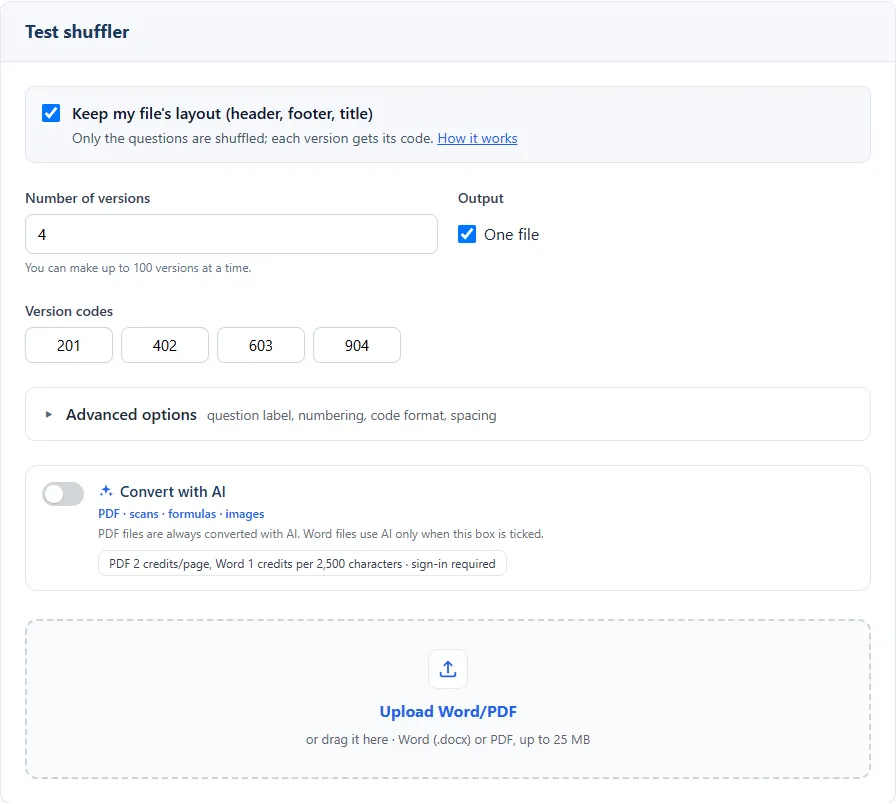
- Open the test shuffler. No account is needed.
- Set the number of versions, up to 100 at a time.
- Check the version codes. They are generated for you; click one to change it. Under Advanced options you can set the code length and prefix, the question label and numbering, restart numbering at each part, shuffle the order of the parts, and put the options in a table.
- Choose One file for all versions in one document, or untick it for one file per version.
- Upload the Word file, up to 25 MB. Shuffling starts straight away; download the result as a .zip.
If a question breaks the rules, for example no correct answer is marked, the shuffler tells you, so you can fix the file and upload again.
What you get
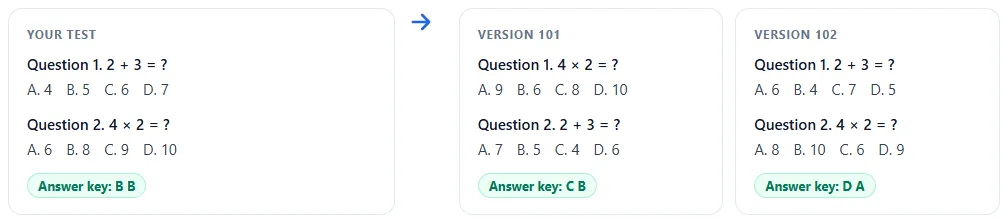
- The versions as Word files, each with its code, ready to print or to edit.
- The answer keys, one per version code, as a Word file.
Because the files are plain Word documents, you can still change a word or a page break before printing.
Check before you print
- Open two versions side by side and read a page of each. Look at page breaks: a question should not start at the bottom of a page with its options on the next.
- Check the items you locked: "All of the above" is still last, the reading passage is still above its questions.
- Pick three questions in one version and check their letters against the answer key for that code.
- Keep each answer key with the printed pile of its version, and note the code on the attendance list if you need to match papers to people.
Common mistakes
- No answer marked, or two. The question cannot go into the key. Underline only the letter of the correct option.
- Options separated by spaces. "A. 4 B. 5" on one line needs the Tab key between options, not spaces.
- Floating pictures. A picture wrapped around text stays where it was while its question moves. Set it to In Line with Text.
- Two question words. Use one word for the whole test, all "Question" or all "Pregunta", not a mix.
- Underlining for emphasis. If a question underlines a word ("which word is not…"), mark correct answers in red instead, so the underline is not read as the answer.
Questions
Is it free? Yes. Shuffling a Word test needs no account and no payment. Only the optional AI conversion, for PDFs and free layouts, uses credits.
Does it change my questions? No. It reorders questions within each part and options within each question, and renumbers them. The wording, pictures and formulas stay as you wrote them.
Can I shuffle a test with true/false or short-answer parts? Yes. Start each part with its tag (the format guide lists them); each part is shuffled on its own, and the parts can be shuffled too.
How do I mark several versions quickly? Mark each paper against the key for its code. To skip marking altogether, run the test online: shuffle it into as many versions as you need, up to 1,000, and scores are ready when candidates submit. See online exams and test shuffling.
Can I use the shuffled test in Moodle? Moodle shuffles questions inside a quiz by itself. To get the Word test into Moodle, see how to import a Word test into Moodle.