How to format a multiple-choice test in Word: a printable cheat sheet
A test written in Word looks obvious to a person: here is a question, here are four options, the third one is right. Software has to work that out from the file, and a few small habits, such as options separated with spaces or a picture floating beside the text, make it guess wrong. This page lists the rules that let ExamQR read a Word test exactly, whether you then shuffle it into versions, convert it to Moodle XML or QTI, or import it into a question bank.
The same rules fit on one page. Print it for the staff room, or send the link to the people who write your tests.
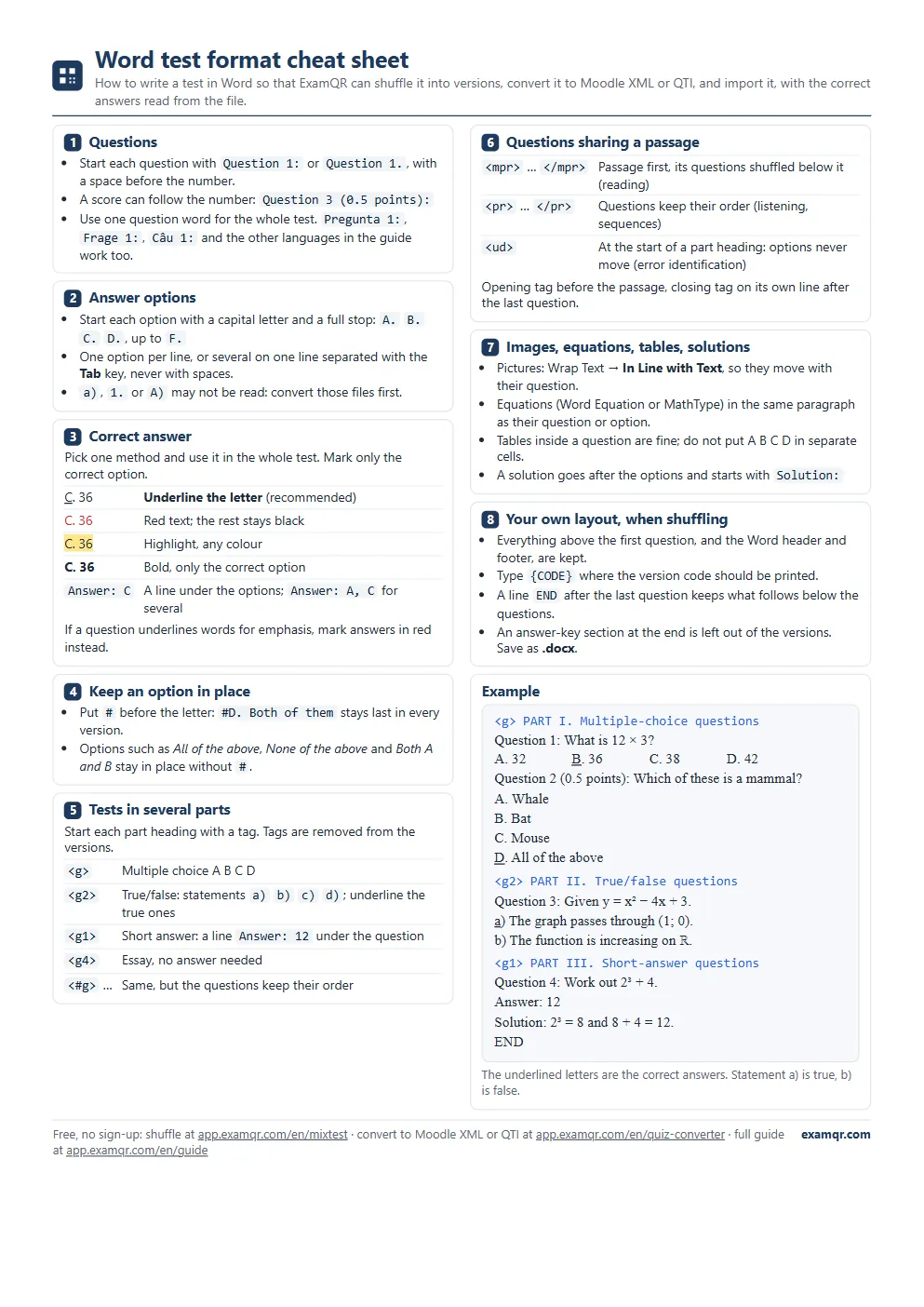
The five rules that cover most tests
- Start each question with "Question 1:" (or "Question 1."), with a space before the number. This is how the software knows a new question starts. A score can follow the number: "Question 3 (0.5 points):".
- Start each option with A. B. C. D., a capital letter and a full stop, up to F. Put one option per line, or several on a line separated with the Tab key.
- Underline the letter of the correct option. Only the letter is needed, not the whole option.
- Set pictures to In Line with Text. A picture that sits in the line moves with its question.
- Save as .docx. Re-save an older .doc file as .docx; a PDF needs converting first.
Use one question word for the whole test. "Question" works, and so do the words of six other languages, such as "Pregunta 1:", "Frage 1:" or "Câu 1:", but not a mix of them in one file.
Marking the correct answer
Choose one method and use it throughout the test:
| Method | When to use it |
|---|---|
| Underline the letter | The default. Quick to do and easy to see when checking. |
| Red text | When the test already underlines words for emphasis ("which word is not…"), so underlining cannot mean the answer. |
| Highlight or bold | If that is how your team already marks answers. Bold only the correct option, never every letter. |
| A line "Answer: C" | When you prefer not to format text. Write it just below the options; "Answer: A, C" for several correct answers. |
Mark only the correct option. A question with no marked answer, or with two marked when only one is right, cannot be scored, and the tool tells you so you can fix the file.
Why spaces between options cause trouble
"A. 4 B. 5 C. 6" typed with spaces looks like three options, but to the software it may read as one option whose text is "4 B. 5 C. 6", because spaces also occur inside answers. A Tab character, or a new line, is an unambiguous break. Options written as a), 1. or A) may not be read either; the converter can bring such files into the right format.
Keeping options and questions in place
- One option: put # before its letter, #D., and it stays in its position in every version. "All of the above", "None of the above" and "Both A and B" stay in place by themselves.
- A run of questions: start the part heading with <#g>. The questions keep their order, for example when one uses the answer of another; their options are still shuffled.
Tests in several parts
A test that mixes kinds of question is split into parts. Each part heading starts with a short tag naming the kind of question:
| Tag | Part | How the answer is given |
|---|---|---|
| <g> | Multiple choice | Underline the letter, as above |
| <g2> | True/false statements a) b) c) d) | Underline the letter of each true statement |
| <g1> | Short answer | A line "Answer: 12" under the question |
| <g4> | Essay | No answer needed |
The tags are removed when the test is shuffled or converted, so candidates never see them.
Questions that share a passage
For a reading text, put <mpr> before the passage and </mpr> on its own line after the last question that uses it. The passage always comes first and its questions are shuffled below it. Use <pr> … </pr> when the questions must stay in order, as in a listening task. For error identification, where A B C D are underlined words in a sentence, start the part heading with <ud> so the options never move.
Pictures, equations, tables and solutions
- Pictures: right-click, Wrap Text, In Line with Text. A floating picture is anchored to a spot on the page, not to its question, so it stays behind when the question moves.
- Equations: Word's own Equation and MathType both work. Keep each equation in the same paragraph as its question or option.
- Tables: a question may contain a table. Do not put the options A B C D in separate cells.
- Solutions: write them after the options and start with "Solution:", so they are not read as another option.
When you shuffle: keep your own layout
The test shuffler uses your file as the template of every version. Everything above the first question, and the Word header and footer, stay as they are. Type {CODE} where the version code should be printed, and a line END after the last question if something follows it, such as a signature line. An answer-key section at the end of the file is left out of the candidates' versions. How to create multiple versions of a test in Word walks through it.
Questions
Is there a Word template? Yes. The test shuffler page has sample files in each language, including a three-part test. Edit one rather than starting from a blank page.
My tests do not follow these rules. Do I have to retype them? No. Upload the file to the quiz converter and tick Convert with AI; it rewrites the test in this format for you to check. PDFs and scans are converted the same way. AI conversion needs an account and uses credits.
Can I share the cheat sheet? Yes. Print it, put it in your teacher handbook, or link to this page. The full Word format guide has every tag and keyword, with examples.
Is the format only for ExamQR? These are the rules ExamQR reads. Once converted, the test can go into Moodle as Moodle XML, or into a platform that imports QTI 2.1; see how to import a Word test into Moodle.