Grading shuffled tests: one answer key per version, and a free marking spreadsheet
Shuffling a multiple-choice test into versions stops candidates copying from their neighbours. It also means that question 4 is correct with D on one paper and with B on the next. Marking a pile of mixed versions against the wrong key gives a confident, tidy, wrong score, and nobody notices until a candidate checks their paper.
This guide shows what the free ExamQR test shuffler gives you to mark with, how to mark by hand without mixing keys, and how to score every version at once with a free spreadsheet you can download below.
What you get with the versions
When the test shuffler makes the versions, the download holds the versions themselves and a Key folder with these files:
| File | What it holds | Use it to |
|---|---|---|
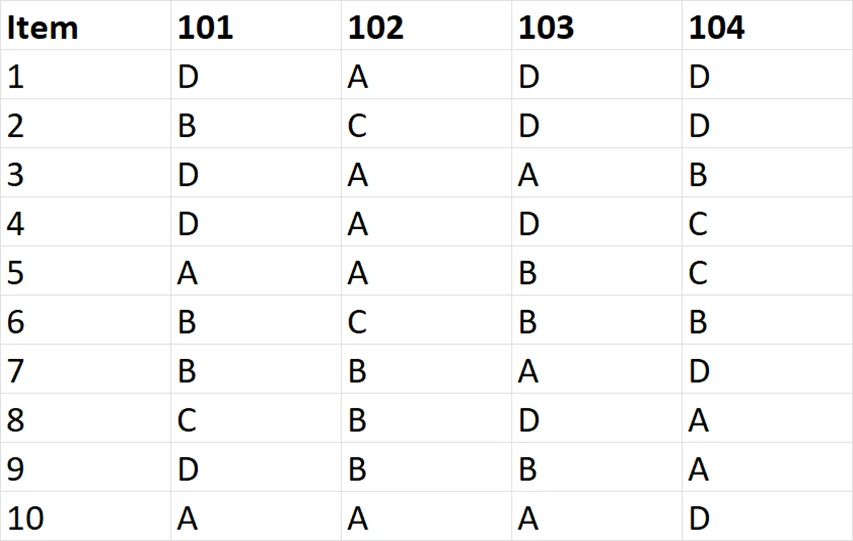
| Key_MixTest_Horizontal.xlsx | One row per question, one column per version code | Print it and mark by hand, or paste it into the marking spreadsheet |
| Key_MixTest_Vertical.xlsx | One row per question of each version: code, question, key, points | Look keys up in your own spreadsheet or another system |
| MixRule_1.xlsx | For each version: which original question each question is, and where its options went | Bring answers back to the original order, for example to compare questions across versions |
| OriginalTestKey_1.docx | The key of your original test | Keep a record of the test as you wrote it |
The file names follow the language of the shuffler page; in Spanish, for example, the folder is called Clave. The keys are built from the answers marked in your Word file, so they cannot contain a copying mistake: if the letter you underlined is right, every version's key is right.
1. Keep the code on every paper
Every way of marking depends on knowing which version a candidate had. The shuffler prints the code on each version, in your own layout where you typed {CODE}. Make sure the code also ends up wherever the candidate writes answers:
- If candidates answer on the question paper, the code is already there. Collect the whole paper.
- If they answer on a separate answer sheet, add a box Version code to the sheet and ask them to copy it before they start. Check a few sheets while they work.
- Hand out the versions in a fixed pattern (for four versions, rows alternating 1 2 1 2 and 3 4 3 4) and note the code next to each name on the attendance list. A missing or unreadable code can then be recovered from the seat.
2. Marking by hand
- Sort the papers into one pile per code before you mark anything.
- Print the horizontal key. Cut it into strips, one column per code, or fold it so only one column shows.
- Mark one pile at a time with the strip of its code. Lay the strip next to the answers and count the matches.
- Before moving to the next pile, check one paper of the pile against the strip a second time.
Sorting first is what prevents the expensive mistake: marking a 102 paper with the 101 key. A paper marked with the wrong key scores close to what pure guessing would, about a quarter of the marks on a four-option test, which looks like a weak candidate rather than an error.
3. Scoring every version in a spreadsheet
With more than a class or two, typing the answers once and letting a spreadsheet compare them is faster and leaves a record. The free marking spreadsheet below does the lookup for you:
Download the marking spreadsheet (Excel, English)
- Open Key_MixTest_Horizontal.xlsx from the Key folder, select everything with Ctrl+A, copy, and paste it into cell A1 of the sheet Answer key.
- In the sheet Scores, type one candidate per row: the name, the version code from the paper, then the letter chosen for each question. Leave a cell empty when a question was not answered.
- The score and the maximum for that version appear at once, and every wrong answer turns red.

The spreadsheet takes up to 100 questions, 300 candidates and 100 versions, and each question is worth one point. It is made for Excel. Because a typing slip changes a score, have someone read back a sample of rows against the papers, the same check you would do after marking by hand.
4. Comparing questions across versions
After the test you may want to know which questions were too hard or did not work: the share of candidates who got each one right, and which wrong option attracted them. Across versions this needs care, because question 4 of version 101 and question 4 of version 102 are different questions.
The MixRule file tells you, for each version, which original question sits at each position and which original option each letter shows. Use it to bring every candidate's answers back to the order of your original test; then all versions can be counted together, and the answers can go into the free test analysis tool, which works on one answer key. What the numbers mean is explained in item analysis: difficulty and discrimination.
When to stop marking paper
If you shuffle because candidates sit close together, consider running the same test online in the room instead. In an online exam on ExamQR each candidate gets their own shuffled version, up to 1,000 of them, and the multiple-choice part is scored the moment they submit. There is no code to copy and no key to match, and the answers are stored against each original question, so the item analysis covers all versions at once. Without a reliable internet connection, ExamQR Exam does the same on a local network in a computer lab.
Common mistakes
- Answer sheets without a code. Add the box before printing; recovering codes from a seating plan afterwards is slow.
- Marking before sorting. One paper from another version in the pile gets the wrong key. Sort first, always.
- Re-shuffling after printing. Shuffling again makes new keys. If you change the test, shuffle and print again, and throw away the old keys.
- Keys kept apart from their papers. Store each key with the papers of its code, and keep the whole Key folder until results are final.
- Editing a version by hand after shuffling. Swapping two options in one version makes its key wrong. Fix the original file and shuffle again.
Questions
Is it free? Yes. The test shuffler and the marking spreadsheet are free, and the shuffler needs no account.
Can questions be worth different points? The vertical key lists the points of each question, as set in your Word file. The spreadsheet gives one point per question; to weight questions, multiply in your own sheet using the vertical key.
Can a scanner mark the answer sheets? ExamQR does not read paper answer sheets. If you use your own optical mark reader, give it the vertical key: one row per question of each version.
Where do I learn to make the versions? See how to create multiple versions of a multiple-choice test in Word and fair test shuffling.